
Laptops are the ultimate tool for remote workers, offering freedom and mobility to work from coffee shops, kitchen counters, or airport terminals. However, from a physical health perspective, they are a total disaster. Staring down at a low screen while hunching over a cramped keyboard is a recipe for chronic neck pain and shoulder tension. Optimizing your laptop ergonomics is not just a nice-to-have upgrade—it is a critical necessity to protect your spine and maintain long-term productivity.

The core problem with laptop design is the permanent attachment of the screen to the keyboard. If the keyboard is at the correct height for your hands, the screen is way too low, forcing your neck into a downward angle. If the screen is at eye level, your hands are forced to reach up, causing severe wrist and shoulder strain. According to safety guidelines published by the Occupational Safety and Health Administration (OSHA), poor workstation setups are a leading cause of repetitive strain injuries. Let’s explore how you can correct this layout and build a healthy home office setup.
1. The Screen-Keyboard Separation Hack
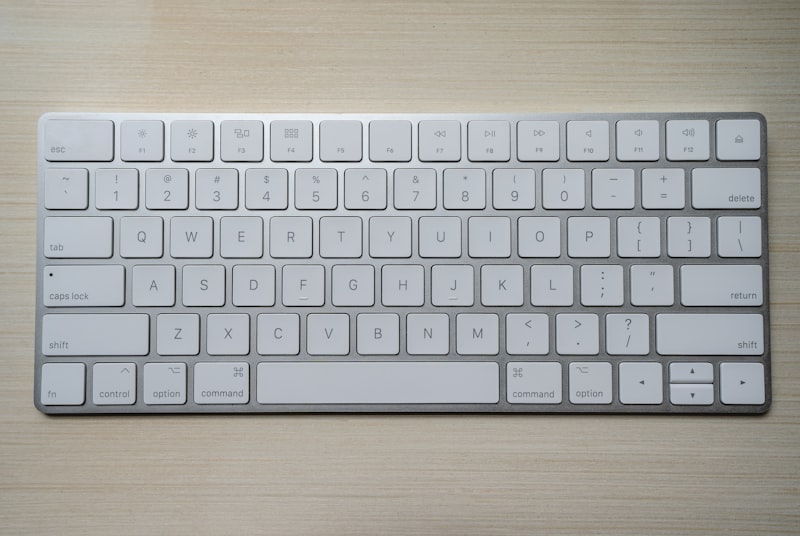
The single most important rule of laptop ergonomics is to separate your screen from your keyboard. You should never use a laptop’s built-in keyboard and trackpad for extended periods of time. Instead, elevate your laptop on a stand (or a stack of heavy books) so that the top of the screen is at eye level. Then, plug in an external keyboard and mouse on your desk surface. This simple change instantly aligns your neck while keeping your arms in a relaxed, neutral position.
2. Optimize Screen Distance and Angle
Your elevated laptop screen should be positioned roughly an arm’s length away from your face (about 20 to 30 inches). If it is too close, you will experience eye strain; if it is too far, you will naturally lean forward, neutralizing your good back posture. Tilt the screen back slightly (about 10 to 20 degrees) to match your natural downward line of sight without requiring you to bend your neck.
3. Keep Your Wrists in a Neutral Position
When typing on your external keyboard, your wrists should remain flat and straight, not bent upward or downward. Bending your wrists pinches the median nerve, leading to carpal tunnel syndrome. Keep your keyboard flat on the desk, or tilt it slightly downward to encourage a natural arm slope. Avoid using keyboard kickstands, as they force your wrists into a harmful upward angle.
4. The 90-Degree Elbow Rule
Position your external keyboard and mouse at a height that allows your elbows to hang naturally close to your body, bent at a 90-to-100-degree angle. Your shoulders should be completely relaxed, not shrugged or pulled forward. If your desk is too high, raise your chair and use a footrest to keep your feet supported.
5. Take Regular Micro-Breaks
Even with a perfect ergonomic setup, the human body is not designed to stay still for hours. Implement the 20-20-20 rule to give your eyes a rest, and stand up every 45 minutes to stretch your chest, neck, and shoulders. Regular movement keeps your joints lubricated and maintains healthy blood circulation.
Final Thoughts
Laptops are built for convenience, not comfort. By separating the screen from the keyboard, positioning the display at eye level, and maintaining neutral joint angles, you can prevent chronic strain and work pain-free from any location.